Forex MT4/MT5 Indicators Forex Indicators Download Free
Today I will tell you how to easily add indicators to MT5 so you can supercharge your trading strategy. MetaTrader 5 is a powerful platform Add Custom Indicator used by traders all over the world to access forex market. its advanced charting and analytical How to install indicators on MT5 Mac tools it provides a solution for trading currencies, stocks and commodities.
How to Install indicators on MT5 PC
Platform offers over 80 built in indicators and analytical objects that can be customized according to the trades preferences. This allows for in depth market analysis and helps traders make informed decisions.

EAs are customizable scripts that Install Custom Indicators can execute trades automatically based on pre-set rules and conditions set by the trader.
How to install indicators on MT5 Mobile
This feature eliminates human emotions from the trading process and allows for faster trade execution. This is where using indicators on MT5 can greatly enhance your trading experience. MT5 offers a wide range of customizable indicators that cater How to install indicators on MT5 Mac to different trading styles and strategies.
Traders have the freedom to combine multiple indicators or modify their settings according to their preferences and needs. This allows for greater Install MetaTrader flexibility in analyzing different market.
How to Add an Indicator to MT5
Adding indicators to your trading platform can greatly enhance your analysis and decision making process. With MetaTrader 5 you have access to a wide range of indicators that can be easily integrated into your charts.

Open the Navigator Window in MT5
The first step is to open the Navigator window by clicking on the Navigator button in the toolbar or by pressing Ctrl+N on your keyboard. The Navigator window contains all the tools and indicators available in MT5.
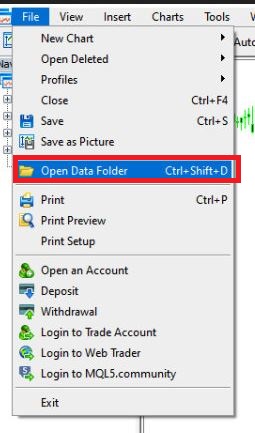
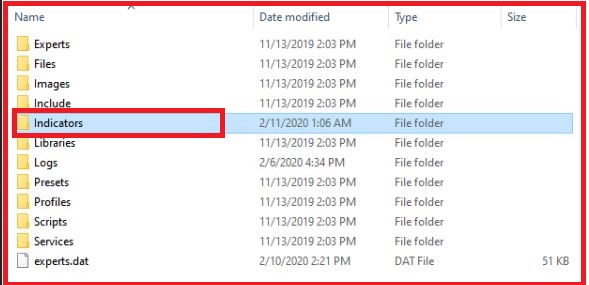
You can access a wide range of built-in indicators by clicking on insert at the top menu bar and then selecting Indicators. Alternatively, you can also import custom Volume Divergence made or third party indicators into MT5 by clicking on File > Open Data Folder > MQL5 > Indicators.
Choose Your Preferred Indicator
In the Navigator window navigate to the Indicators tab. Here you will find a list of all available indicators categorized into different folders such as Trend, Oscillators, Volumes etc.
Scroll through the list and choose Squeeze Break your preferred indicator. You can also use the search bar at the bottom of the window to quickly find a specific indicator.
Drag and Drop Indicator File
Once you have selected your desired indicator simply drag and drop it onto your chart. you can also right click on the indicator and select Attach to Chart. .
You can easily apply indicators to any chart by right clicking on the chart ABCD Harmonic and selecting “Indicators list.” From there, choose the desired indicator and click Add.

Save Your Settings
To save your customized settings for future use, click on Save As… at the bottom of the pop up window and give it a name that makes it easy for you to check.
Different indicators work well with different strategies so knowing what you want How to install indicators on MT5 Mac to achieve in your trades will help you narrow down the options.